Table of Contents
Your firm picked PCLaw because it handles billing, trust accounting, and case management from one system. Keeping it on a server in your office is a separate question, and that question gets more expensive every year the server ages.
Hosting PCLaw in the cloud answers that without asking you to give up software you already know. A Private Cloud runs PCLaw exactly as it does today, minus the server closet, the licensing headaches, and the after-hours call when something fails.
legal practice management software, and it assumes you’ve already settled on PCLaw. If you haven’t, that decision lives elsewhere.
Who This Guide Is For
This guide to using PCLaw in the cloud is built for anyone currently using or considering PCLaw who wants to explore its cloud-based potential.
It’s relevant to:
This guide walks you through every step of evaluating and implementing PCLaw in a cloud environment — from why firms make the move, to migration, to the real costs.
Introduction to PCLaw
PCLaw is server- and desktop-based practice management and legal accounting software built for law firms — client and matter management, time and billing, and business and trust accounting in one system. For the full breakdown of features, pricing, and fit, read our full PCLaw review. What follows here is about hosting PCLaw, not choosing it.
Legal Document Management
PCLaw handles billing, accounting, and case management well, but your firm may still need a dedicated Document Management System for secure document and email management with more aligned features.
You might consider LexWorkplace, document management software born in the cloud, built for law firms.
Features:
Don’t Sacrifice the Right Software for the Cloud
Cloud technology offers an array of advantages to small and mid-sized law firms, which we’ll detail shortly.
Some firms, while wanting the dependability, security, and mobility the cloud offers, incorrectly believe those perks require giving up their current software for a web-based application.
PCLaw Go Mobile App
PCLaw Go, PCLaw’s mobile companion app, lets your team log billable hours and handle routine tasks from an iPhone or Android device. It’s useful, but it isn’t the same thing as running PCLaw itself in the cloud — PCLaw Go supplements your desktop software; it doesn’t replace it.
That distinction matters because most web-based practice management tools trade away the depth PCLaw offers. PCLaw remains a mature, full-featured accounting and case management platform, and giving it up for a lighter web app usually means giving up functionality your firm actually uses.
You don’t have to make that trade. A PCLaw hosting solution gives your firm the full functionality of PCLaw and the mobility, security, and reliability of the cloud — without switching software.
Why PCLaw Is Better in the Cloud
Running PCLaw in a Private Cloud gives your firm the mobility, security, and reliability of the cloud without losing PCLaw’s accounting and case management depth. Here’s what that looks like in practice.
1. The Ideal Combination
The fusion of the cloud’s capabilities with PCLaw’s comprehensive platform presents an ideal setup for your firm. The cloud is renowned for its mobility, accessibility, and top-tier security features, transforming the way businesses operate.
PCLaw provides a rich, comprehensive platform that manages your firm’s cases and accounting procedures. This convergence of both worlds creates a “have-your-cake-and-eat-it-too” scenario for your law firm.
By harnessing the power of the cloud and integrating it with PCLaw, your firm can continue to enjoy the benefits of the trusted legal software it relies on, while also gaining the advantages of cloud computing.
2. The Burden of Server and IT Management
Managing and supporting an on-premise server has long been treated as a necessary cost of running high-grade legal practice management software.
Managing a server demands considerable maintenance — proactive, to keep it running, and reactive, to fix glitches and issues as they crop up.
To run PCLaw on-premise, your firm needs to:
Running PCLaw in the cloud (PCLaw hosting) gives you all the functionality and benefits PCLaw offers, without the complexity of owning the server yourself. It also gives your firm room to grow — adding or removing users and storage as your needs change, without a hardware order or a wait.
3. Freedom to Work from Anywhere
Being tied to a single computer, office, or location slows your firm down. Hybrid and remote work aren’t an emerging trend anymore — they’re how most firms already operate, and your software needs to keep up.
Your team should be able to log billable hours from home, review contracts on the way to the airport, and check court deadlines from a client site.
Moving PCLaw to the cloud gives your entire firm uniform, secure, real-time access to your software — and, with the right cloud solution, every other application, document, and email account — from any device, anywhere.
Hosting PCLaw in a Private Cloud gives you a secure, easy-to-use Virtual Desktop with access to all your critical legal software, documents, and email, wherever you’re working.
4. Enhanced Data Security and Compliance
As part of the legal industry, you have an ethical obligation to protect your firm and client data. Cyber-attacks keep rising and getting more sophisticated, and compliance requirements keep getting more rigorous — safeguarding sensitive data is critical.
Your PCLaw application and your firm’s data are substantially safer within a reputable cloud platform. Cloud providers that specialize in securing client data typically employ security measures that meet the highest industry standards:
Compare that to a server sitting in your firm’s office — likely unattended in a closet or copy room. For all but the largest firms, building and maintaining that level of security isn’t economical.
Cloud providers can invest heavily in bank-grade infrastructure because of their scale. As a client, you get access to that Fortune 500-level security, without footing the full bill.
It’s a common misconception that data is safer just because it’s physically on-site. If your firm has a server and an internet connection, you’re already exposed to the internet — and to online threats.
5. Compatibility with Windows and Mac
PCLaw is Windows-only. That’s a real problem if your firm runs a mix of devices — plenty do, even PC-heavy firms with partners who prefer a Mac at home.
The old workaround, running Windows on a Mac through Parallels, was slow and clunky.
A Virtual Desktop solves this directly. Running PCLaw in the cloud gives Mac users the same full access, performance, and usability as a PC — no emulation, no workaround. Virtual Desktops are platform-agnostic, so your team’s device choice stops being a constraint.
6. Increased Reliability and Minimal Downtime
PCLaw runs your firm’s billing and trust accounting — an outage there isn’t just an inconvenience, it stalls collections and delays the time entries your firm needs to bill accurately. A high-performing Private Cloud, like Uptime Cloud, is built on enterprise-grade infrastructure and monitored around the clock specifically to keep that from happening.
Professional-grade Private Cloud solutions typically incorporate:
Together, these measures keep PCLaw — and everything else your firm runs — up and available when your team needs it.
8. Greater Cost-Effectiveness
Through our experience assisting law firms, we’ve conducted comparative financial analyses of cloud versus on-premise IT. We consistently find that the Total Cost of Ownership (TCO) is notably lower with a Private Cloud.
That holds true in nearly every case, once you account for up-front costs, recurring and unexpected IT costs tied to server ownership, and local IT support.
We’ll cover the economics of running PCLaw in the cloud later in this guide, with tools to help you run your own financial analysis.
PCLaw as a Cloud App
PCLaw is a server-based software designed to run on a dedicated server.
This means your firm has to purchase, manage, and maintain its own servers to host the software — a setup that’s remained the same since PCLaw’s inception.
Cloud-based software, by contrast, is accessed via the internet through a browser, without server upkeep.
So how do you convert PCLaw into a cloud app? Let’s look.
The most straightforward method is to move PCLaw to a cloud platform such as Uptime Cloud. This lets you run PCLaw in the cloud as a web application, eliminating the need for server ownership.
This approach isn’t always the best fit, though.
If your firm relies solely on PCLaw or a similar single application, this cloud platform works well. But if your firm also runs other software, like Time Matters, for document management, you’ll need a strategy for each system.
A more comprehensive solution — a Private Cloud or Virtual Desktop — often serves your firm better. Keep reading for both.
PCLaw in a Private Cloud
Now that you know why PCLaw is better in the cloud, let’s look at how it actually works in that environment.
First, a quick distinction between cloud-based (or web-based) software and desktop/server-based software.
Before cloud computing became widespread, most software, including practice management tools like PCLaw, ran from a firm’s on-site servers and was accessed through each employee’s desktop computer. The core of the software, including its database, lived on the server — which meant owning and maintaining a server was a prerequisite for running software like PCLaw. Managing servers and in-house IT was simply the cost of using law firm management software.
That was the status quo. Today, it isn’t the only option.
A Private Cloud for law firms is a hosted, managed IT platform that fulfills the same role as a server, or exceeds it. It hosts your firm’s legal applications, documents, emails, and more, while offering greater mobility, reliability, and security.
Server-based software like PCLaw still requires a server — that’s a constant. With a Private Cloud, the private cloud effectively becomes the server.
A typical law firm’s private cloud for PCLaw will often include:
The “Private” in Private Cloud
Private Clouds are so named because every law firm — called a “tenant,” in cloud computing terms — gets its own segregated, dedicated working environment.
In most cases, that means:
In practical terms, your firm gets its own private, secure space for its software, documents, and data, distinct from every other firm on the platform. That’s an extra layer of data security and privacy for your firm.
PCLaw in a Virtual Desktop
You know why PCLaw is better in the cloud, and how a Private Cloud gets it there. But what does working in a Private Cloud actually look like day to day?
The answer is a Virtual Desktop.
A Virtual Desktop is a desktop — like the Windows or Apple desktop you log into at home and work — that’s hosted in the cloud and accessible anytime, anywhere. Typically, your Virtual Desktop has the software you need every day: Microsoft Word, Excel, Outlook, your practice management software, your accounting software, and even your document management software.
The Virtual Desktop makes your firm’s software, otherwise available only from your work computer or your office network, available from any computer in the world.
Virtual Desktop solutions are sometimes called “Desktop-as-a-Service,” or DaaS — the same logic as Software-as-a-Service, or SaaS.
How Virtual Desktops Work
Under a conventional setup, your primary legal software lives on your physical, local desktop — the workstation or laptop you use in the office. Everything runs locally, with each application installed on your own machine.
A Virtual Desktop works differently. Few, if any, applications are installed on your local computer. Often, the only icon on your local desktop is a shortcut that logs you into your Virtual Desktop.
Once you’re logged in, you and everyone on your team get access to all of your firm’s software, documents, and data, including:
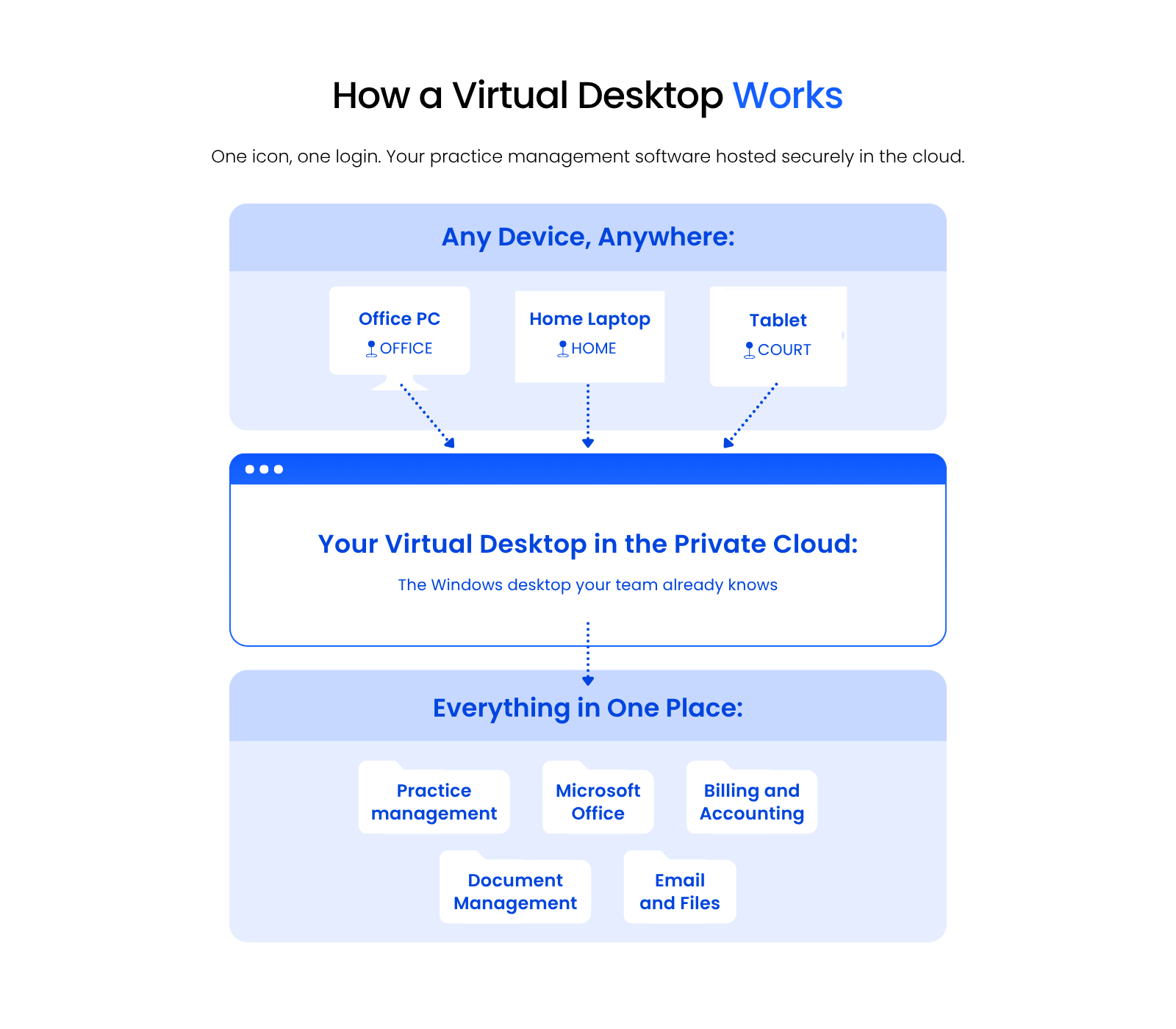
This setup lets your entire firm access PCLaw and all your applications, documents, and data from anywhere, on any device.
Virtual Desktops also remove the need to install, update, and maintain every application on every computer in your firm. Your cloud service provider keeps everything updated instead, which means fewer interruptions and less for your team to manage.
Law Firm Virtual Desktops
A closer look at Virtual Desktops beyond PCLaw specifically — how they work and who they’re for.
Should My Law Firm Use Virtual Desktops?
Virtual Desktops bring real advantages to law firms. They’re likely the best route if any of the following describe your firm:
We’ll cover selecting the right Virtual Desktop provider, and doing your due diligence, shortly.
Virtual Desktops Demonstrated
For an example of working in a Virtual Desktop, watch our demonstration of Uptime Cloud (formerly Uptime Practice).
Once you’ve seen it in action, the next question is how to actually get there.
Migration: How to Move PCLaw to the Cloud
Understanding how PCLaw works in the cloud, the benefits it offers, and what it can do is only the beginning of the broader case for cloud solutions for law firms — the next step is to look at how to move PCLaw to the cloud.
Your cloud service provider typically oversees this process. It can also be carried out by a combination of IT consultants, software consultants, and cloud hosting providers.
Here’s the process broken down step by step.
Steps to Make PCLaw Cloud-Based
A well-run PCLaw cloud migration follows five steps, from onboarding through go-live and ongoing support.
Step 1: Onboarding Project Manager
Like any well-executed project, your PCLaw cloud migration should start with a single point of contact. Your project manager (called the Onboarding Manager at Uptime Legal) lays the groundwork by setting clear expectations and communicating what’s coming next.
The Onboarding Manager should spell out specific timelines, expectations, and what’s needed from your firm, removing uncertainty about what happens next.
Communication planning matters more here than the technical cutover itself. Migrations rarely go wrong because of a data-conversion problem — they go wrong when a firm skips a clear, choreographed plan for the why, the timeline, and the training schedule, communicated from leadership down to every user before anything moves.
Step 2: Engage in Discovery
A competent cloud service provider has a well-defined, documented onboarding process, but no two law firms are the same — this is far from a cookie-cutter step.
An effective PCLaw cloud migration starts with a thorough exploration and assessment of your firm’s existing environment, including:
Step 3: Build
After discovery, your PCLaw hosting provider starts building your private cloud environment. A provider worth choosing has a proven process for building it efficiently.
The Onboarding Manager and engineering team install your software, provision your email accounts, and build the “shell” of your comprehensive IT platform. This phase includes:
Step 4: Go-Live
Next, your PCLaw cloud provider gathers your data from its current locations. Every piece of your firm’s technology transitions over:
The transfer should be seamless, with all data securely moved to the new cloud platform. The Onboarding Manager and their team should thoroughly test every application once data has been imported, along with computers and peripherals.
Your PCLaw hosting provider should also be flexible about scheduling the cutover — often running it overnight or over a weekend — so the entire process takes no more than a day, with minimal or no downtime for your team.
Step 5: Training and Ongoing Support
A quality PCLaw hosting provider knows a good first impression matters, because employee adoption depends on a reliable, user-friendly system from day one.
Your cloud provider should have a real plan for training your entire staff, with extra support available as needed. The Onboarding Manager who ran the migration should stay involved, helping with training and tying up loose ends.
This process shouldn’t end with the migration. Your PCLaw cloud hosting provider should have systems in place for ongoing support and account management, so beyond your day-to-day technical needs, you have a genuine partner and legal technology advisor.
Careful onboarding management can be the difference between a smooth transition and a rocky one. Getting this right is what makes moving PCLaw — and your firm — to the cloud successful.
The Economics of PCLaw Cloud-Based
Beyond the mobility, security, and reliability PCLaw hosting delivers, the broader cloud vs. on-premise IT decision for law firms comes down to economics too.
Running PCLaw on-premise costs more than most firms expect. Buying servers is just the starting point — backup systems, battery backups, and the rest of the supporting IT infrastructure add to the bill, and you’ll need a skilled IT consultant to set it up and keep it running.
Those costs tend to run higher than firms budget for, year after year.
To see the real financial picture, compare a Private Cloud’s costs directly against what your firm actually spends on on-premise servers and IT.
On-Premise IT
On-premise IT costs break down into three categories: up-front server costs, ongoing monthly costs, and unpredictable unplanned costs. All three belong in a real Total Cost of Ownership comparison.
Up-Front Costs
Start by pricing out everything involved in a new server cycle (typically every 3 to 5 years) — buying and implementing server infrastructure. That usually includes:
Get pricing for each item and record it in a spreadsheet. Add up the total, and you’ll have a real sense of what the next cycle of on-premise IT costs your firm up front.
Most of these costs are ultimately dictated by the software your firm uses. How many servers do you need, and how powerful must they be?
Will you need multiple dedicated servers? Do you need VMware virtualization? These questions come down to your practice management and document management software, and their server requirements.
Ongoing Costs
Next, tally your ongoing costs — monthly recurring costs as well as annual costs like renewals and maintenance. For most firms, these typically include:
Add up what your firm currently spends, or expects to spend, on an ongoing basis — both consistent monthly costs like a Managed IT contract and less predictable costs like hourly IT support. If you’re unsure what a reasonable budget looks like, average your last two to three years of spending.
Don’t overlook costs that are easy to miss, like server replacement or unexpected failures, and the productivity your firm loses during downtime. These are easy to underestimate, but they’re part of a real Total Cost of Ownership for on-premise servers.
On-Premise Costs: Unplanned
Finally, budget for some level of unplanned IT expenses. Proactive IT reduces the chances and impact of unforeseen problems, but over enough time, they happen anyway. These unplanned costs typically take the form of:
Some of these costs are fixed and predictable; others are wildly unpredictable but still need to be budgeted for. Add up your up-front costs, monthly recurring costs, and unplanned-cost budget, and you have your firm’s Total Cost of Ownership for on-premise IT.
Compare to Private Cloud
Now compare that Total Cost of Ownership to a Private Cloud’s.
A Private Cloud already wins on reliability, security, and mobility. It wins on cost too.
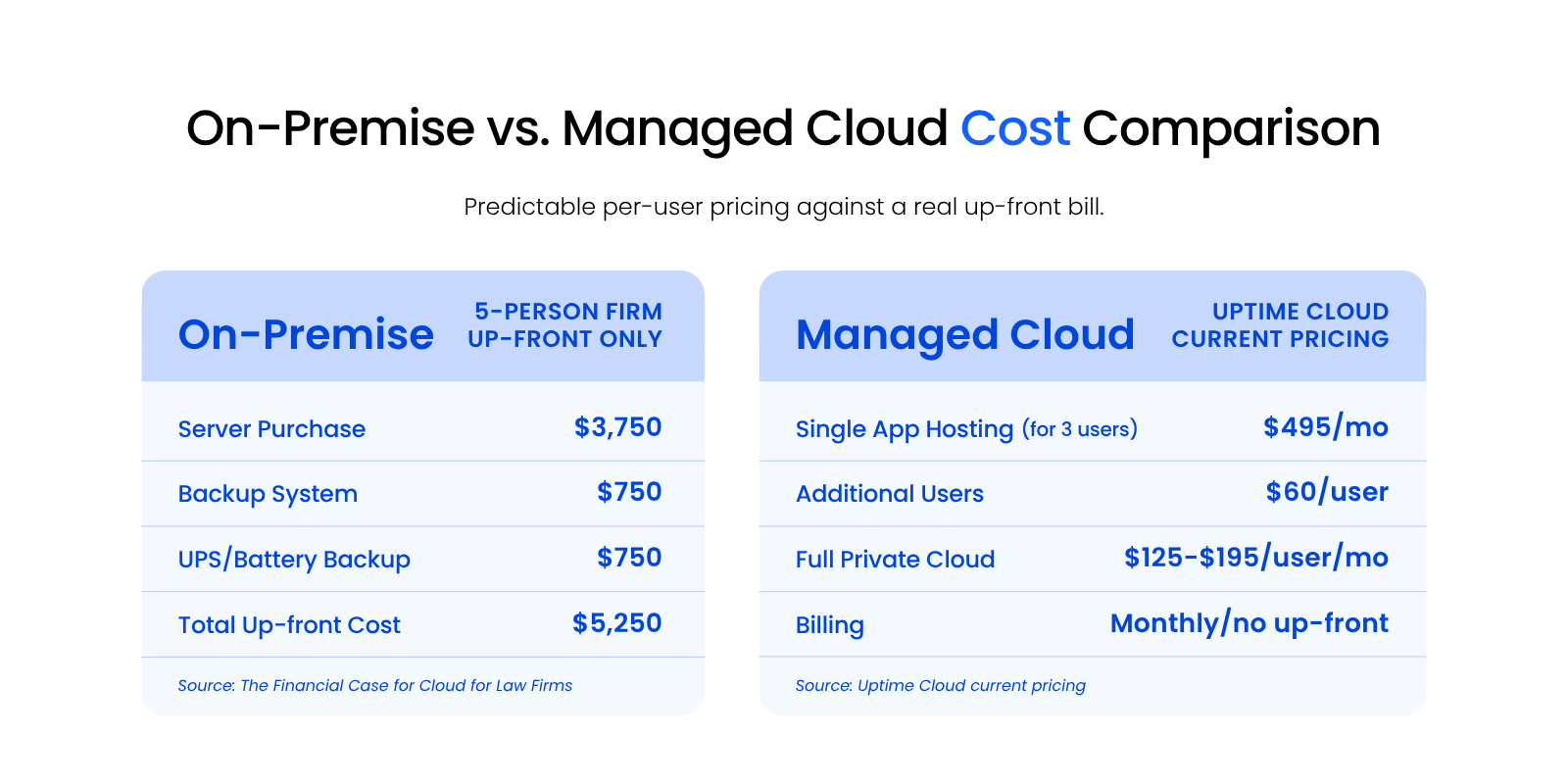
Private Cloud costs typically include:
With the right provider, that monthly fee covers everything you’d otherwise buy and maintain separately — the servers, the backups, the security tools, the IT consultant. On-premise IT carries hidden and unpredictable costs on top of the sticker price; a fully managed Private Cloud doesn’t.
The monthly-fee comparison only tells part of the story. Weigh it against what downtime actually costs your firm: a few days of an attorney’s lost billable hours, at their hourly rate, outpaces the entire difference between an adequate IT setup and an excellent one. The fee gap between hosting providers is rarely the number that matters most — the cost of downtime is.
Want to run the numbers for your own firm? Use our Cloud Cost Comparator to compare on-premise and Private Cloud costs directly.
The PCLaw Annual Maintenance Plan
PCLaw is available as a monthly Subscription-Based License (SBL) or as a perpetual license paired with an Annual Maintenance Plan (AMP).
If your firm uses PCLaw, we recommend either the SBL model or renewing an AMP every year, which keeps your firm connected to PCLaw support for licensing and technical questions. With SBL or an AMP, your firm is entitled to:
Doing Your Due Diligence and Mitigating Risk
Not every company that says it can host PCLaw is actually qualified to do it.
Your firm has several paths to move PCLaw to the cloud, and doing your research matters no matter which one you take.
A growing number of providers — from small local IT shops to generalized, non-legal cloud hosts — now advertise PCLaw cloud hosting. That isn’t automatically a red flag, but it does mean due diligence isn’t optional. Hosting PCLaw well takes specialized configuration and real software expertise.
Vet any Private Cloud provider against the specifics below before you sign anything.
That last point about hosting-partner certification is worth taking literally, not as a formality.
Once you’ve narrowed your list, do the same research you’d do for any vendor: contact references, ask for case studies, and read the provider’s Google reviews.
Is Hosting PCLaw in the Cloud Right for Your Firm?
Whether PCLaw belongs in your firm is separate from whether it belongs on a server. If your firm has already committed to PCLaw, hosting it in a Private Cloud removes the aging hardware, the licensing renewals, and the outage calls, without changing the software your team knows.
The firms that get the most from this move treat due diligence like vetting any vendor: hosting-partner certification, data ownership terms, and uptime guarantees, confirmed before signing. Get that right, and PCLaw runs in the cloud the way it always should: reliably, securely, from wherever your firm works.
WHAT’S NEXT
Frequently Asked Questions

Uptime Legal’s Technology Solutions
Cloud, software, IT, and document management built for today’s law firms.